
Please visit Covering TeamCity for updated information.
Measure your test quality and your team's progress by taking advantage of NCover's advanced code coverage features within TeamCity 6.
Requirements
15 minutes, installation of Team City 6 (TC6), a .NET build framework (e.g., NAnt or MSBuild).
Note that this document provides only a setup tutorial for NCover with TC6, not a comprehensive setup for TeamCity. A full TeamCity configuration tutorial can be found on the TeamCity website.
This document follows the Project Setup > Build Template Setup flow in TC6. Please keep in mind that automatic display of NCover reports in TC6 only works when using TeamCity's built-in NUnit test runner. If you're using a different test framework, you should see the section on setting up NCover as a task of your build script rather than TC6 in order to import and view your coverage results.
Basic Setup
Install TeamCity 6 on the machine (instructions here).
TeamCity's configurations differ slightly based on the build runner and unit testing framework used. From the runner setup window, select the build runner: NAnt or MSBuild. (For .NET builds, TC6 currently supports MSBuild and NAnt. See docs.ncover.com for more information about setting up other build runners.)
NAnt Configuration
Setting the Runner
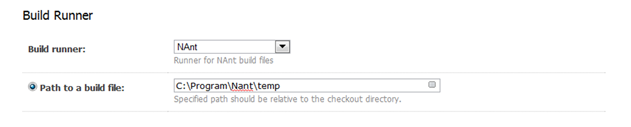
Set the build runner to NAnt and provide a build file path.
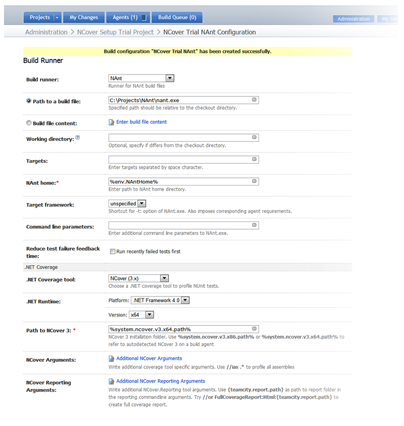
Set the .NET coverage tool to NCover 3.x.

Set the. NET runtime fields to the values appropriate for your configuration.

Supply the path to the NCover 3 NCover.Console.exe executable. The %system.ncover.v3.x86.path% (or %system.ncover.v3.x64.path% when testing 64-bit applications) refers to the auto-detected path for NCover 3 on the build agent. Alternatively, you can provide the specific path, typically "C:\Program Files\NCover\NCover.Console.exe" (or "C:\Program Files (x86)\NCover\NCover.Console.exe for 32-bit NCover on a 64-bit system).

Supply any NCover.Console and NCover.Reporting arguments. Click the highlighted text that first appears to reveal a default argument demonstrating syntax. For a complete list of NCover.Console arguments, refer to the NCover.Console documentation. For NCover.Reporting arguments, see the NCover.Reporting documentation.
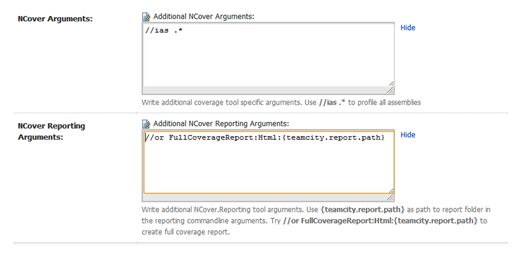
Click "Save" at the bottom of the page. Settings will appear when the window refreshes (see image below). Your project is configured to collect coverage.
MSBuild Configuration
Setting the Runner
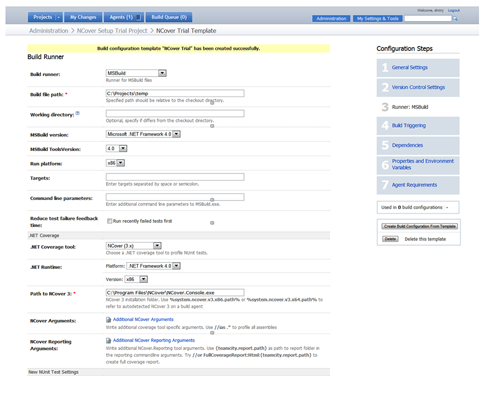
Set the build runner option to MSBuild and provide a build file path.
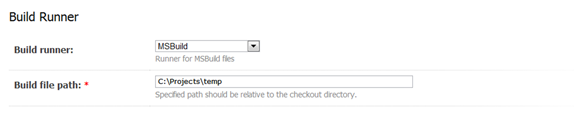
Set the MSBuild version. NCover supports all the. NET frameworks, including 4.0. Mono is not currently supported by NCover.

Optional: Enter the name of the build target you would like to use. The default build target for your build will be executed if none is specified.
Based on the. NET runtime version you're using, select the appropriate MSBuild tools version & run platform (x86 or x64).

Set the .NET coverage tool to NCover 3. x.
Set the .NET Runtime fields to the values appropriate for your configuration.

Supply the path to the NCover 3 NCover.Console.exe executable. The %system. ncover. v3. x86. path% (or %system. ncover. v3. x64. path% when testing 64-bit applications) variable refers to the auto-detected path for NCover 3 on the build agent. Alternatively, you can provide the full path, typically "C: \Program Files\NCover\NCover.Console.exe" ("C: \Program Files (x86) \NCover\NCover.Console.exe" for 32-bit NCover on 64-bit systems).
Supply any NCover.Console and NCover.Reporting arguments. Click the highlighted text that first appears to reveal a default argument demonstrating syntax. For a complete list of NCover.Console arguments, refer to the NCover.Console documentation. For NCover.Reporting arguments, see the NCover.Reporting documentation.
Note: The NCover arguments should not include a call to run NCover (e. g., "path to NCover\NCover.console.exe"). TeamCity automatically provides that command when the NCover3.x selection is made for .NET coverage.
Click "Save" at the bottom of the page. Settings will appear when the window refreshes (see image below). Your project is configured to collect coverage.
Manually Configure Coverage Display
When using TeamCity's built-in NUnit runner for your test framework, displaying coverage is already handled through the TeamCity GUI setup. If you are using a different test configuration, however, you must run NCover.Console.exe from a build script using TeamCity's service messages to pass your coverage file to TeamCity. (Service messages are output calls from your build script and of a form unique to that build agent. See more here.) TeamCity will then invoke NCover.Reporting.exe (also through service messages) and publish your coverage to their interface.
Examples
NAnt Script
< !--Important! Don't forget to include the
< loadtasks assembly="C:\Program Files\NCover\Build Task Plugins\NCover.NAntTasks.dll" />
<target name="coverage" description="Generate code coverage using NCover">
    <ncover program="C:\Program Files (x86)\NCover\NCover.Console.exe"
    coverageFile="PATH FOR YOUR COVERAGE XML FILE"
    testRunnerExe="PATH TO TESTED APPLICATION"
    testRunnerArgs="PATH TO TEST PROJECT DLL AND OTHER ARGUMENTS LIKE /NOLOGO /NOSHADOW"
    workingDirectory="PATH TO WORKING DIRECTORY"
    serviceTimeout="0"
    onlyAssembliesWithSource="true"
    projectName="[Your Project Name]"   />

<echo message="##teamcity[dotNetCoverage ncover3_home='PATH TO YOUR NCOVER DIRECTORY']" />
{teamcity.report.path}']" />
<echo message="##teamcity[importData type='dotNetCoverage' tool='ncover3' path='PATH TO YOUR COVERAGE HTML FILE']" />
</target>
<?xml version="1.0" encoding="utf-8"?>

<Project DefaultTargets="Coverage" xmlns="http://schemas.microsoft.com/developer/msbuild/2003" >

<!--Important! Don't forget to include the <UsingTasks/> in your script. Leaving it out will throw an error because MSBuild will not be able to interpret the call to NCover. /-->

<UsingTask TaskName="NCover.MSBuildTasks.NCover" AssemblyFile="C:\Program Files\NCover\Build Task Plugins\NCover.MSBuildTasks.dll" />

<UsingTask TaskName="NCover.MSBuildTasks.NCoverReporting" AssemblyFile="C:\Program Files\NCover\Build Task Plugins\NCover.MSBuildTasks.dll" />

<Target Name="Coverage">
    <NCover ToolPath="C:\Program Files\NCover\" TestRunnerExe="$(NUnitPath)\nunit-console.exe" TestRunnerArgs="TestAssembly1.dll TestRunner2.dll" CoverageFile="Coverage.xml"/>

    <Message Text="##teamcity[dotNetCoverage ncover3_home='PATH TO YOUR NCOVER DIRECTORY']" />
{teamcity.report.path}']" />
    <Message Text="##teamcity[importData type='dotNetCoverage' tool='ncover3' path='PATH TO YOUR COVERAGE HTML FILE']" />

</Target>

</Project>
Modifying Default Coverage Results
There are two ways to view NCover coverage reports in TeamCity: at the Project level and the Build level.
Project-level Reports
You can create custom report tabs at the Project level and specify the NCover reports you want to display.
Go to "Edit Project Settings," then click on "Report Tabs" and "Create new report tab," and you'll be prompted to set up a report with the following fields:
Tab Title: Your Report
Get artifacts from: Your Project
Base path: coverage.zip
Start page: fullcoveragereport.html
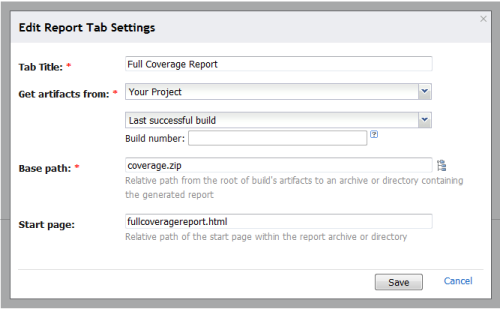
The full coverage report links to many other available reports, but you can specify any of the reports listed on the Code Coverage tab as the start page.
Build-level Reports
Currently (TeamCity 6.5.3), TeamCity is configured for its code coverage tab to expect a file called "index.html" to be in the "coverage.zip" build artifact.
You can modify this "expectation" in Administration > Server Configuration > Report Tabs.
You can also edit the main-config.xml file directly. If you change "index.html" to "fullcoveragereport.html" to match the NCover root report name, then you get a more useful default report view.